

Scan apps in /Applications and your home Applications folder
Back to apps

Mac
iPocket Clear
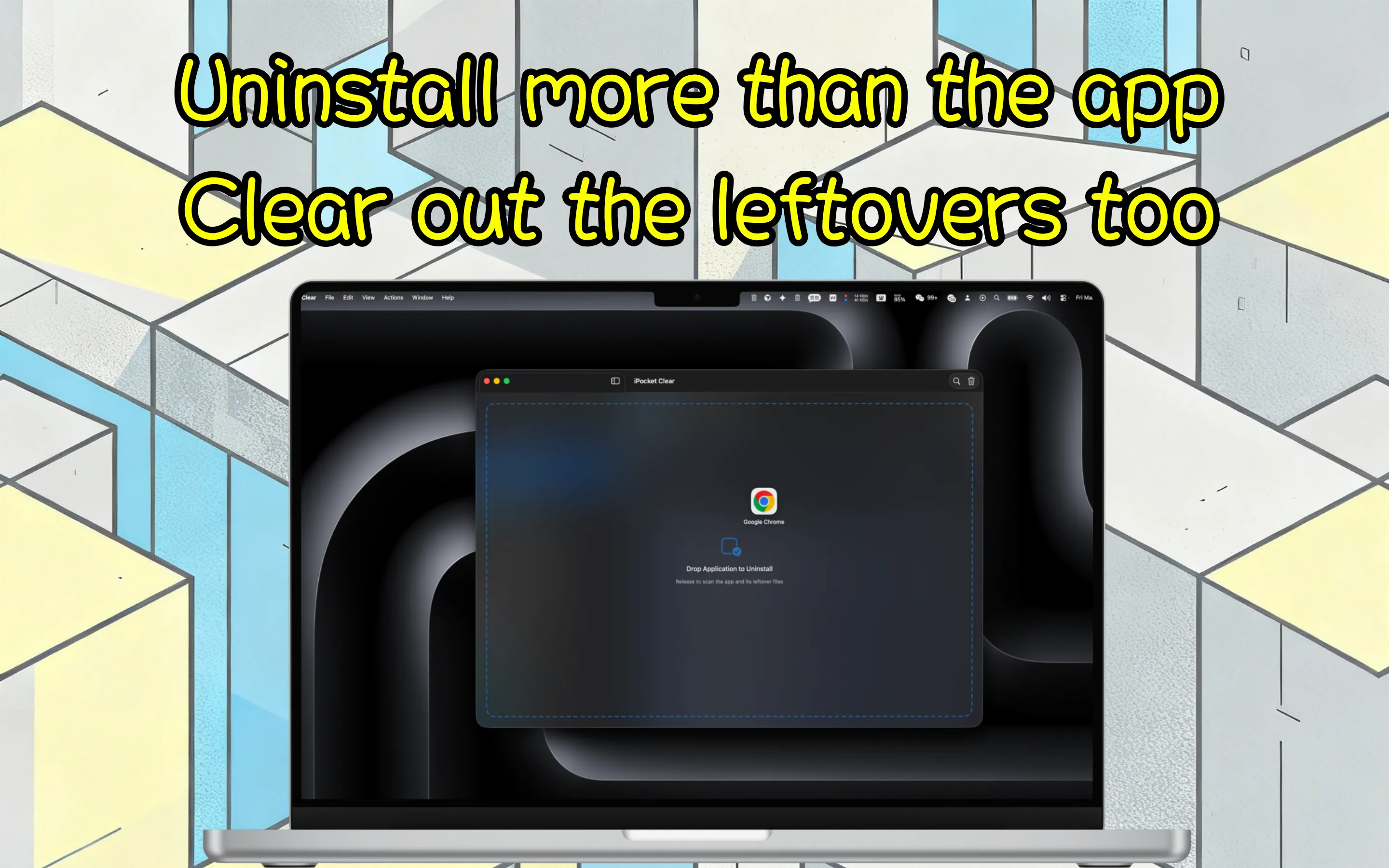
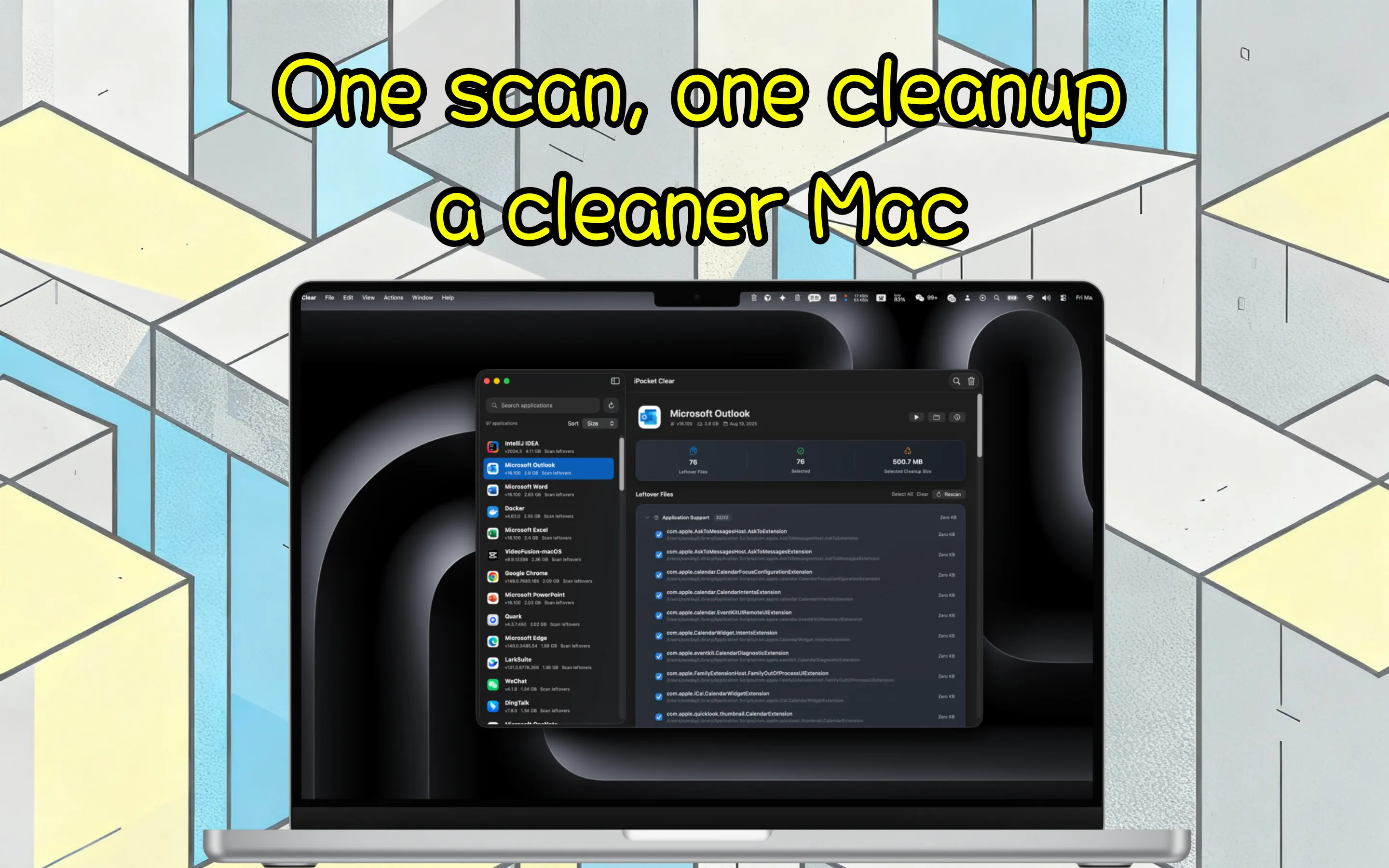
iPocket Clear is a native macOS app uninstaller that scans leftovers before cleanup, reviews protected data, and removes apps and related files in one guided flow.
First published · 2026-03-27
Last updated · 2026-03-27
SCREENSHOTS
SCREENSHOTS
FEATURES
FEATURES
Find preferences, caches, logs, containers, group containers, and other leftovers before cleanup
Review selected files and reclaimable size before removing anything
Use Admin Helper for App Store apps, root-owned bundles, and protected containers
Choose Move to Trash or Delete Immediately for different cleanup needs
FAQ
FAQ
What does iPocket Clear remove?
It scans the app bundle together with related files in Library folders such as Application Support, Preferences, Caches, Logs, Containers, Group Containers, Saved State, Cookies, and Crash Reports. You review the selection before cleanup starts.
Why might iPocket Clear ask for Library access?
Sandbox-compatible builds need Library access to inspect leftovers. Direct-download builds can usually scan Library files automatically.
Can it uninstall App Store apps or apps owned by root?
Yes. When an app is protected by macOS, managed by the App Store, or owned by root, iPocket Clear can switch to Admin Helper so protected files can be removed with the right approval.
What is the difference between Move to Trash and Delete Immediately?
Move to Trash is the safer option and keeps files recoverable. Delete Immediately permanently removes the selected files, and protected containers may still be deleted directly because macOS does not allow them to be moved to Trash.
Why do some containers or leftovers still come back after cleanup?
macOS may still be holding login items, background services, Finder extensions, or other registrations for that app. Close the related components, check Login Items, sign out and back in if needed, then scan again.
Does it show Apple and system apps too?
They are hidden by default to keep the list focused, but you can enable Apple and system apps in Settings when you need to inspect them.