


Show your live iPhone screen inside a 3D phone in the companion browser Viewer
Back to apps

- iPhone
- iPad
PhoneStage: Screen Mirroring — Live iPhone Screen Demos
Give your iPhone screen a stage. Share it to a 3D phone in your Mac browser for app demos, walkthroughs, and presentations.
First published · 2026-09-18
Last updated · 2026-09-19
Screenshots
IPHONE
IPAD
Features
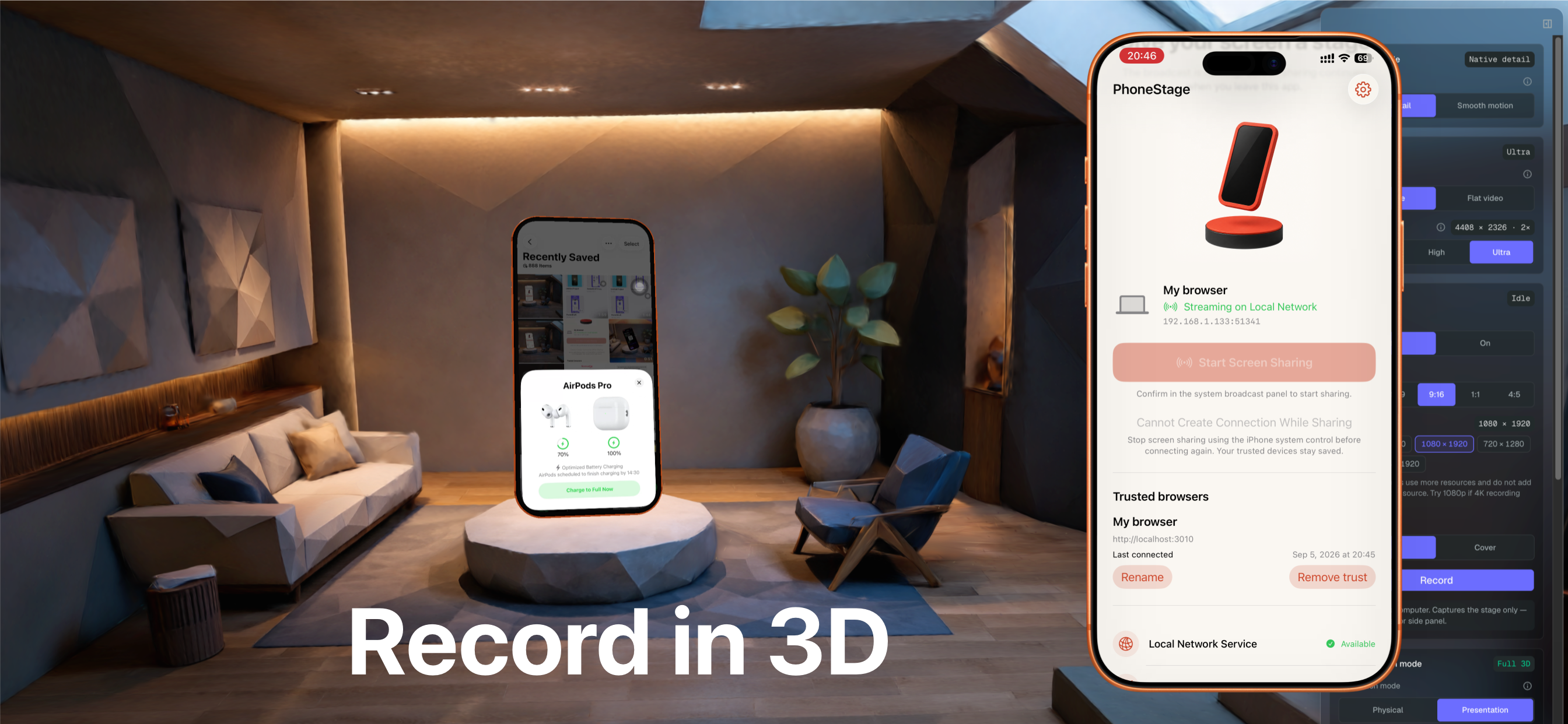
Let the 3D phone follow your device's tilt and rotation, with presentation controls in the Viewer
Pair by QR code or copied connection details, then approve the browser on your iPhone
Remember trusted browsers, rename them, and remove their access from the app
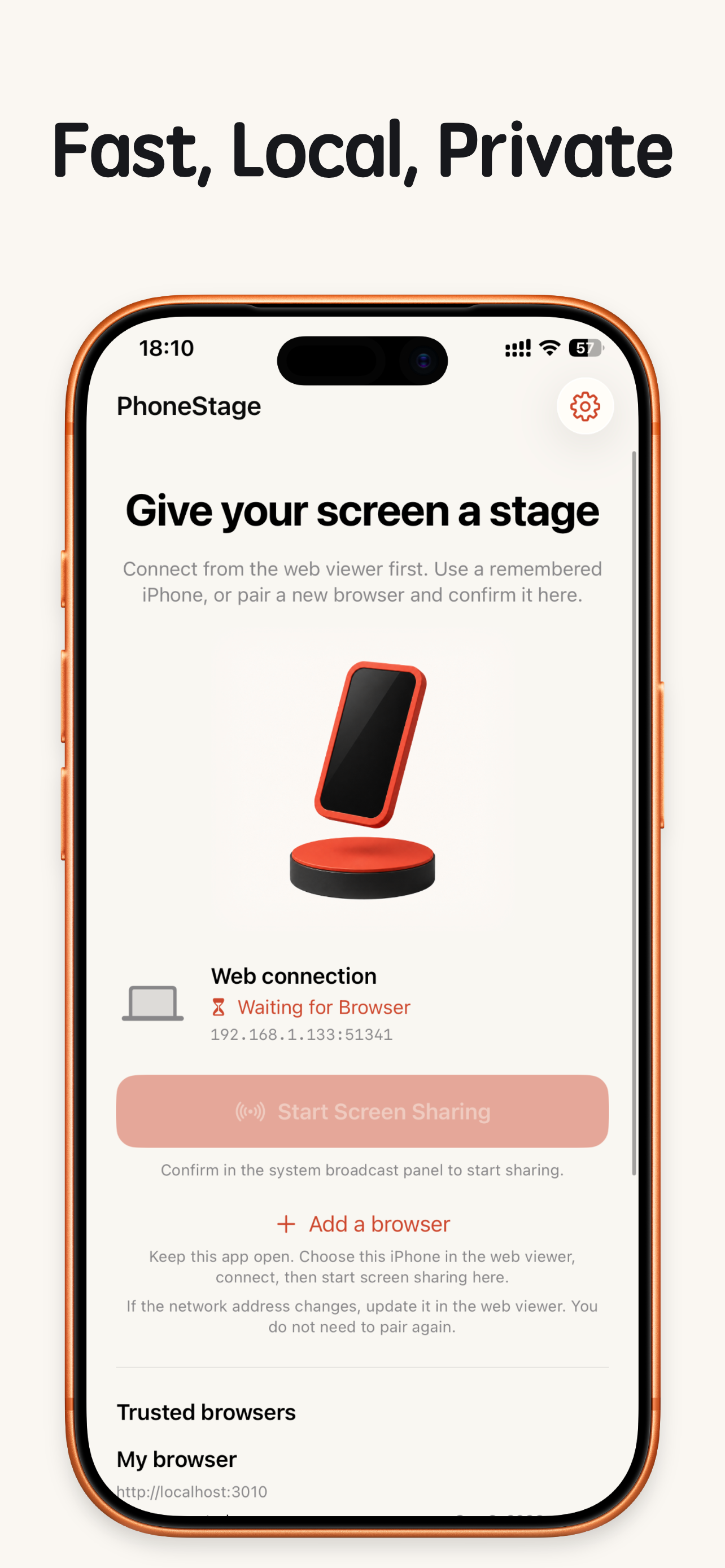
Use direct local-network screen sharing without a PhoneStage account, in-app purchases, or subscriptions
Overview
At a glance
- Developer
- iPocket
- Platforms
- iPhone, iPad
- Availability
- App Store
- Price
- Free
- Requires
- iOS / iPadOS 18.0 or later
- Latest version
- 2026.09100 (2026-09-19)
- Size
- 21 MB
- Languages
- English, Chinese
- Category
- Utilities
A stage for your next iPhone demo
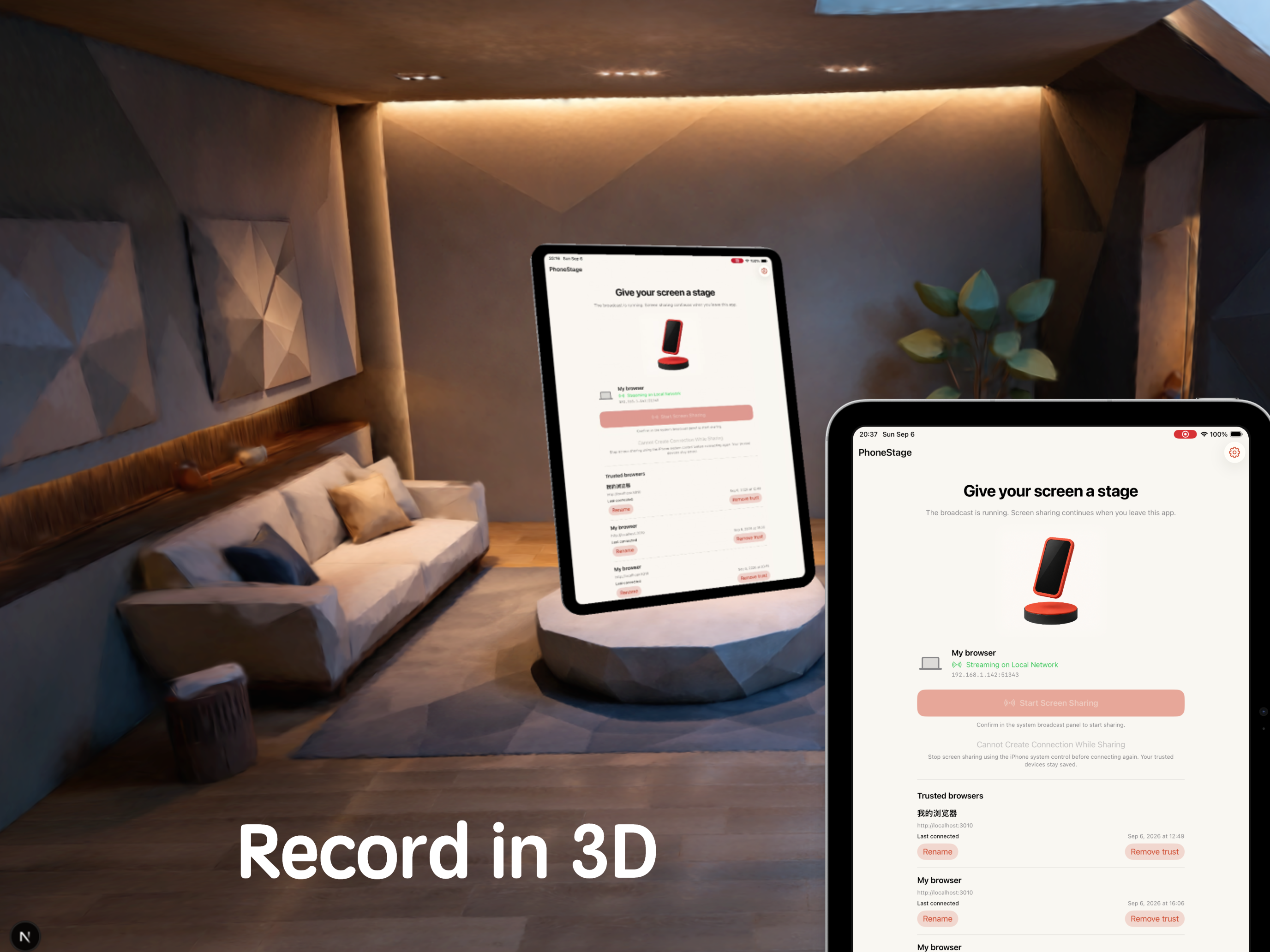
PhoneStage puts the real screen you are using inside a 3D phone in your Mac browser. Walk through an app, explain a design, or present a mobile workflow while the audience follows the live screen.
Use the companion Viewer’s scene and camera controls to frame the presentation. Switch between a 3D presentation and a flat screen view, and choose the video mode that suits detailed text or faster movement. Actual quality and responsiveness depend on your devices, browser, and local network.
From pairing to presenting
- Connect the iPhone and Mac to the same local network and open PhoneStage and the companion Viewer.
- In the Viewer, scan the QR code shown on the iPhone or paste the connection information copied from the app.
- Confirm the browser on the iPhone. Choose to remember it or allow only this connection.
- Tap Start Screen Sharing, select PhoneStage in the iOS screen-recording panel, and start the broadcast.
- Keep the Viewer open and switch to the iPhone app you want to demonstrate. Stop sharing with the iPhone system control when finished.
Local sharing with explicit approval
Screen video, device orientation, and connection signaling travel directly between the iPhone and the connected Viewer on your local network. PhoneStage does not relay the screen through an iPocket cloud video service. The Viewer webpage still loads over the internet, and website traffic is handled separately from screen sharing.
Remembering a browser saves pairing information on both devices. You can rename or remove trusted browsers, or choose a connection that is not remembered. A single Viewer receives the active screen-sharing session.
Read the PhoneStage privacy policy for details about screen content, pairing credentials, optional browser recordings, website analytics, and your controls. For setup help, contact iPocket.
FAQ
What do I need to use PhoneStage?
An iPhone running iOS 18 or later and a Mac running Chrome, connected to the same local network. Allow local-network access when requested. Guest Wi-Fi or network isolation can prevent a connection.
Do I need a Mac app?
No separate Mac app is needed. The companion Viewer runs in the browser at https://tools.ipocket.xyz/tools/phone-stage. PhoneStage is currently preparing for release; App Store download details will be added when available.
Can I demonstrate other iPhone apps?
Yes. After you start the system screen broadcast, you can switch to the app you want to show. Some protected content may not be captured by iOS. PhoneStage does not remotely control other apps.
Does it share audio or use my iPhone camera?
This version shares the screen without app audio or microphone audio. It does not capture images with the iPhone camera. The browser can optionally use the Mac camera to scan the pairing QR code.
Does the 3D phone always follow every movement?
The Viewer follows motion data when iOS makes it available. If background motion data is unavailable, it falls back to screen-orientation updates. You can also adjust the presentation in the Viewer.
Can I record my demonstration?
The companion Viewer includes optional browser recording and downloads the result to your computer. Format and recording availability depend on browser support. The iPhone app does not automatically save screen recordings.
Are there in-app purchases or subscriptions?
No. PhoneStage has no in-app purchases or subscriptions and does not require a PhoneStage account. App Store download pricing will be shown when the app is released.
How do I stop sharing?
Stop the broadcast using the iPhone system screen-recording control. Disconnecting the Viewer closes its connection; it does not stop the iOS broadcast session. Stop the system broadcast before reconnecting after a page refresh or a lost connection.
MORE FROM IPOCKET
Related apps
-
 ClawRSS: OpenClaw RSS Feed ReaderiPhoneiPad
ClawRSS is a modern RSS feed reader for iPhone and iPad with a smarter Today feed, AI summaries, built-in translation, bookmarks, Apple Push alerts, and optional OpenClaw workflows.
View app -
 YesBoxiPhoneiPad
A 3D keepsake for the words that matter.
View app -
 Weather IsletiPhoneiPad
Watch the weather come to life on a 3D island.
View app