

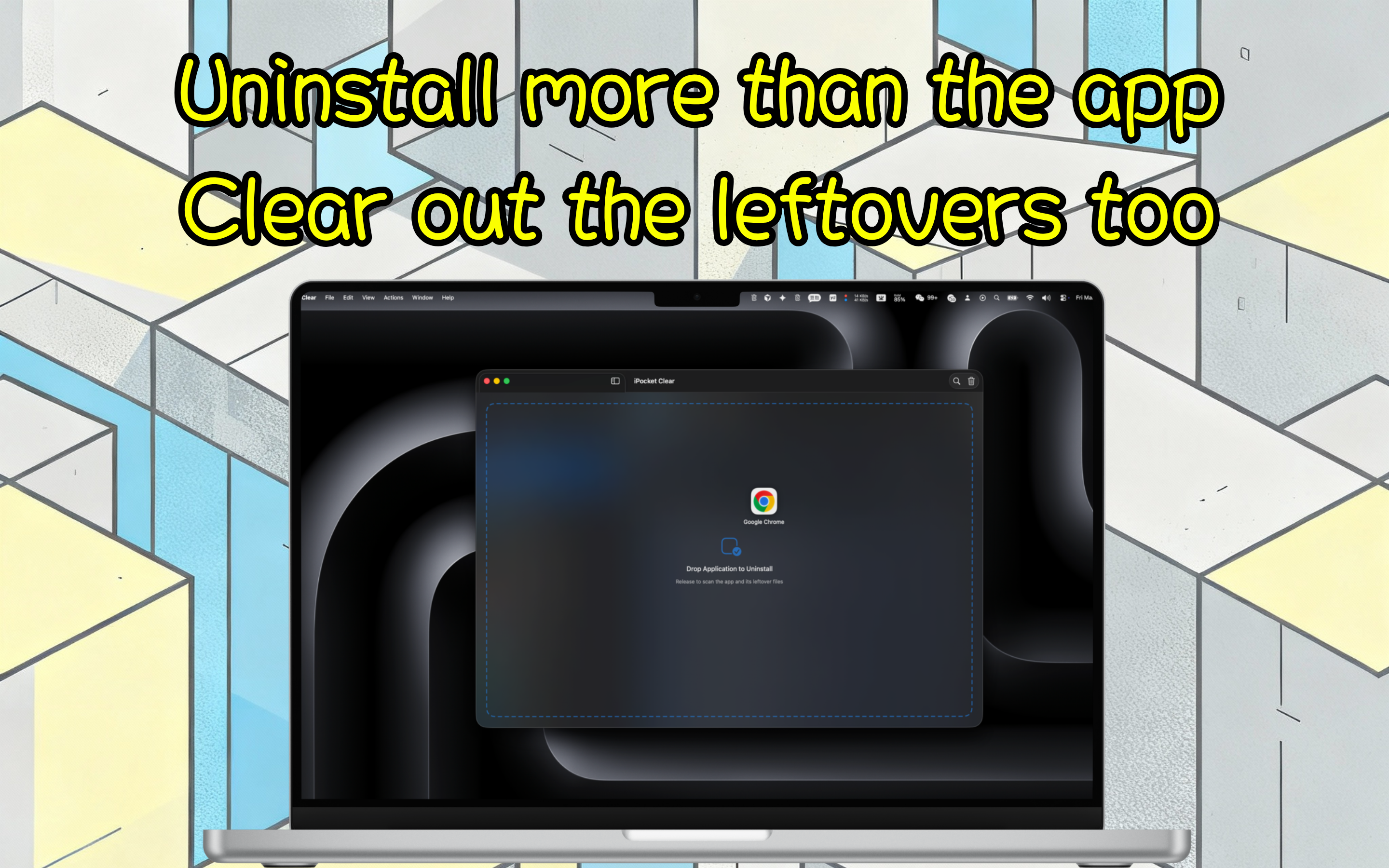
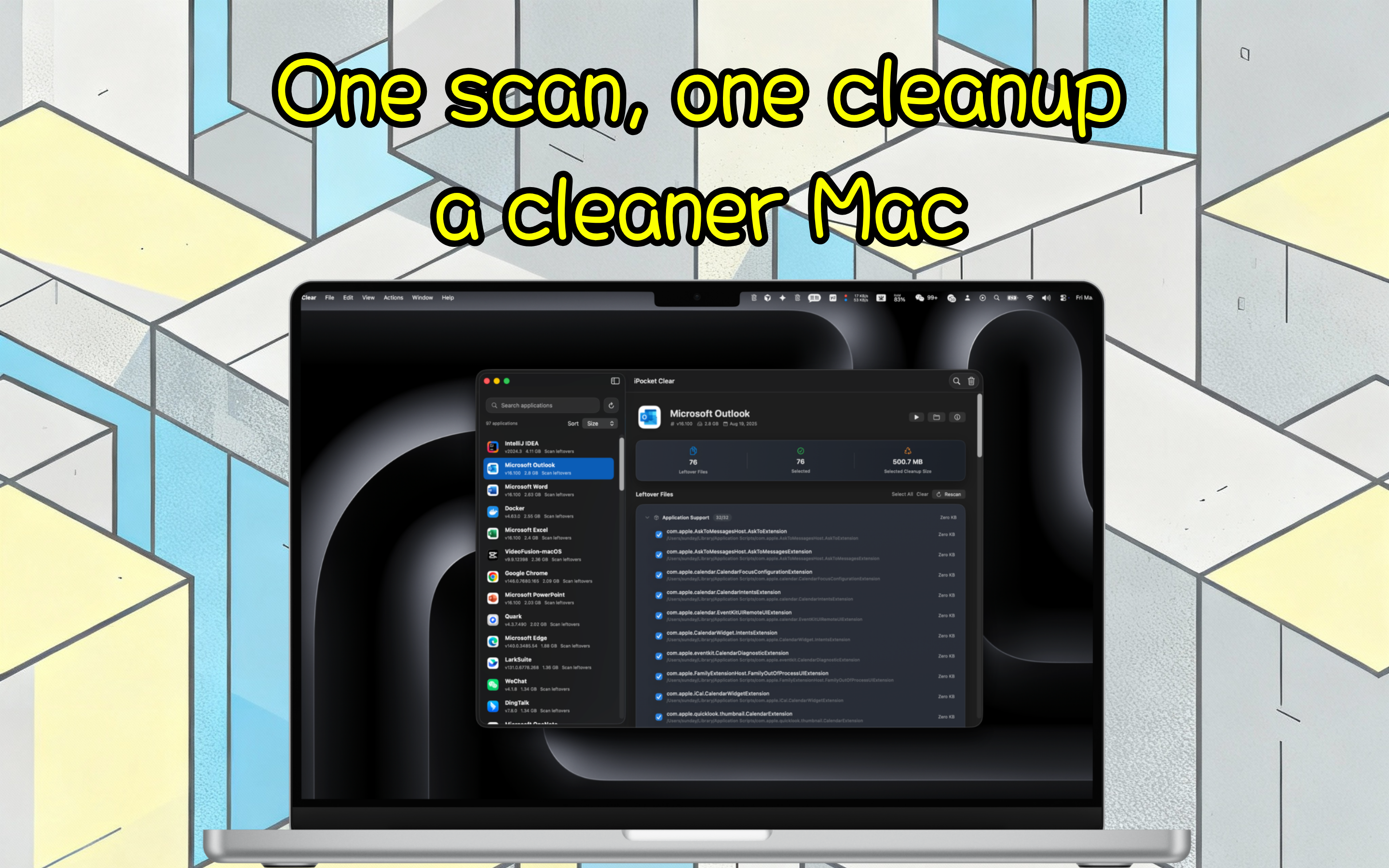
Scan apps in /Applications and your home Applications folder
Back to apps

- Mac
iPocket Clear
iPocket Clear is a native macOS app uninstaller that scans leftovers before cleanup, reviews protected data, and removes apps and related files in one guided flow.
First published · 2026-03-27
Last updated · 2026-03-27
Screenshots
Features
Find preferences, caches, logs, containers, group containers, and other leftovers before cleanup
Review selected files and reclaimable size before removing anything
Use Admin Helper for App Store apps, root-owned bundles, and protected containers
Choose Move to Trash or Delete Immediately for different cleanup needs
Overview
What is iPocket Clear?
iPocket Clear is a native Mac app uninstaller for people who want more than dragging an app to Trash. On macOS, deleting the .app bundle often leaves preferences, caches, logs, containers, and group containers behind. Clear scans those leftovers first, shows what can be reclaimed, and removes the app plus related files in one guided flow.
It is built for everyday cleanup: free apps you tried once, abandoned trial software, or tools that still leave root-owned or App Store–protected files after a normal uninstall.
Who it is for
- Mac users who want a simple uninstaller without a bloated “system cleaner” suite
- People who care about reviewing leftovers before delete instead of blind bulk removal
- Anyone who needs help with App Store apps, root-owned bundles, or protected containers
- Users who prefer a local, focused utility rather than cloud accounts or upsell dashboards
How to uninstall a Mac app with iPocket Clear
- Open Clear and scan
/Applicationsplus your user Applications folder. - Select the app you want to remove. Clear lists related files such as Application Support, Preferences, Caches, Logs, Containers, and Group Containers.
- Review size and selection. Uncheck anything you want to keep before cleanup starts.
- Choose Move to Trash or Delete Immediately. Trash is safer and recoverable; immediate delete is permanent.
- Approve Admin Helper when needed for App Store apps, root-owned bundles, or protected containers.
After cleanup, if leftovers reappear, check Login Items, background services, or Finder extensions tied to that app, then scan again.
What Clear removes (and what it does not)
Clear targets the selected app bundle and related Library paths that typically belong to that app. You always review the selection first.
It does not claim to be a full disk optimizer, antivirus product, or one-click “junk cleaner.” The goal is a careful uninstall workflow: find leftovers, show them, and remove what you approve.
Why leftover files matter
Many Mac apps store settings and data outside the app package. After you delete only the icon in Applications, those files can keep using disk space and sometimes recreate folders when a related helper is still registered. Scanning leftovers before uninstall makes cleanup more complete and predictable.
Privacy and trust
iPocket Clear runs as a local Mac utility. You decide what is selected and whether files go to Trash or are deleted immediately. Library access may be required for sandboxed builds so leftovers can be inspected; direct-download builds often scan Library paths without extra steps.
FAQ
What does iPocket Clear remove?
It scans the app bundle together with related files in Library folders such as Application Support, Preferences, Caches, Logs, Containers, Group Containers, Saved State, Cookies, and Crash Reports. You review the selection before cleanup starts.
Why might iPocket Clear ask for Library access?
Sandbox-compatible builds need Library access to inspect leftovers. Direct-download builds can usually scan Library files automatically.
Can it uninstall App Store apps or apps owned by root?
Yes. When an app is protected by macOS, managed by the App Store, or owned by root, iPocket Clear can switch to Admin Helper so protected files can be removed with the right approval.
What is the difference between Move to Trash and Delete Immediately?
Move to Trash is the safer option and keeps files recoverable. Delete Immediately permanently removes the selected files, and protected containers may still be deleted directly because macOS does not allow them to be moved to Trash.
Why do some containers or leftovers still come back after cleanup?
macOS may still be holding login items, background services, Finder extensions, or other registrations for that app. Close the related components, check Login Items, sign out and back in if needed, then scan again.
Does it show Apple and system apps too?
They are hidden by default to keep the list focused, but you can enable Apple and system apps in Settings when you need to inspect them.
MORE FROM IPOCKET
Related apps
-
 FileTrailMac
FileTrail is a macOS file-tracking utility that records newly added files in the folders you choose, keeps a searchable local history, and gives you fast ways to reveal the latest file from the menu bar or Finder.
View app -
 iPocket NewFileMac
iPocket NewFile is a macOS Finder companion that brings New File back to the right-click menu, keeps your favorite file types close, and lets you save reusable templates for daily work.
View app -
 iPocketXLIFFMac
iPocketXLIFF is a smart XLIFF localization editor for Apple developers, featuring AI-assisted translation and seamless Xcode integration.
View app