

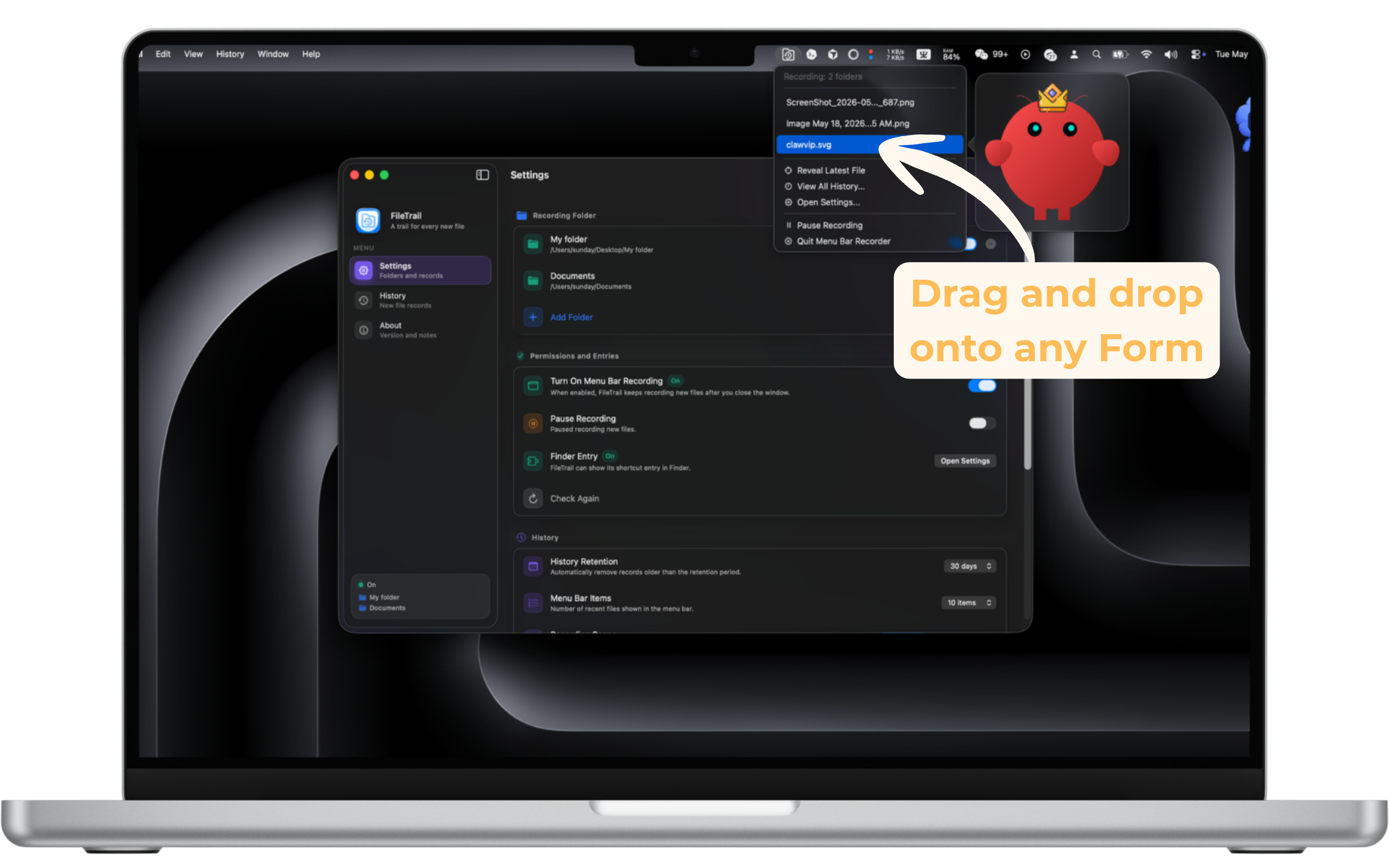
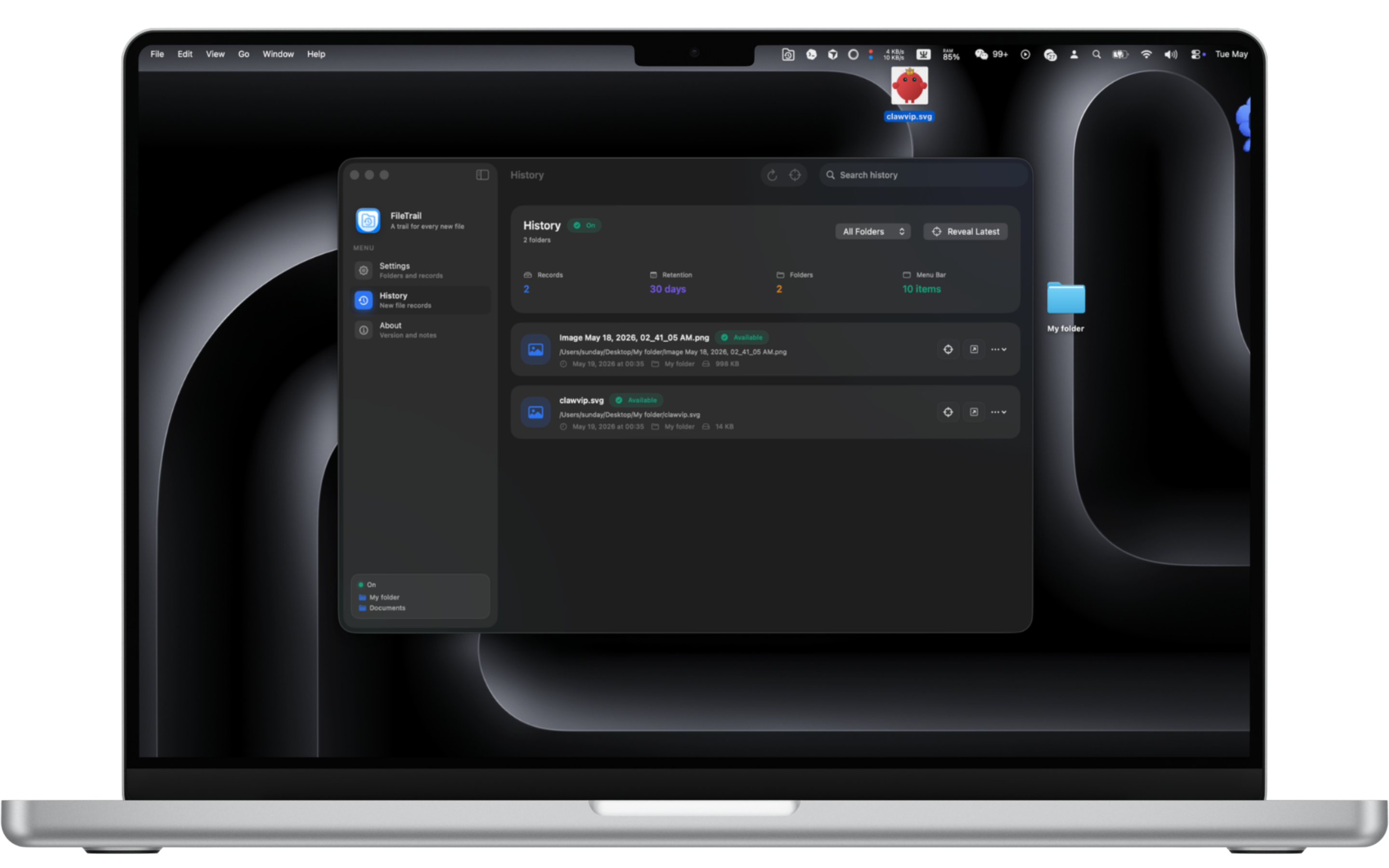
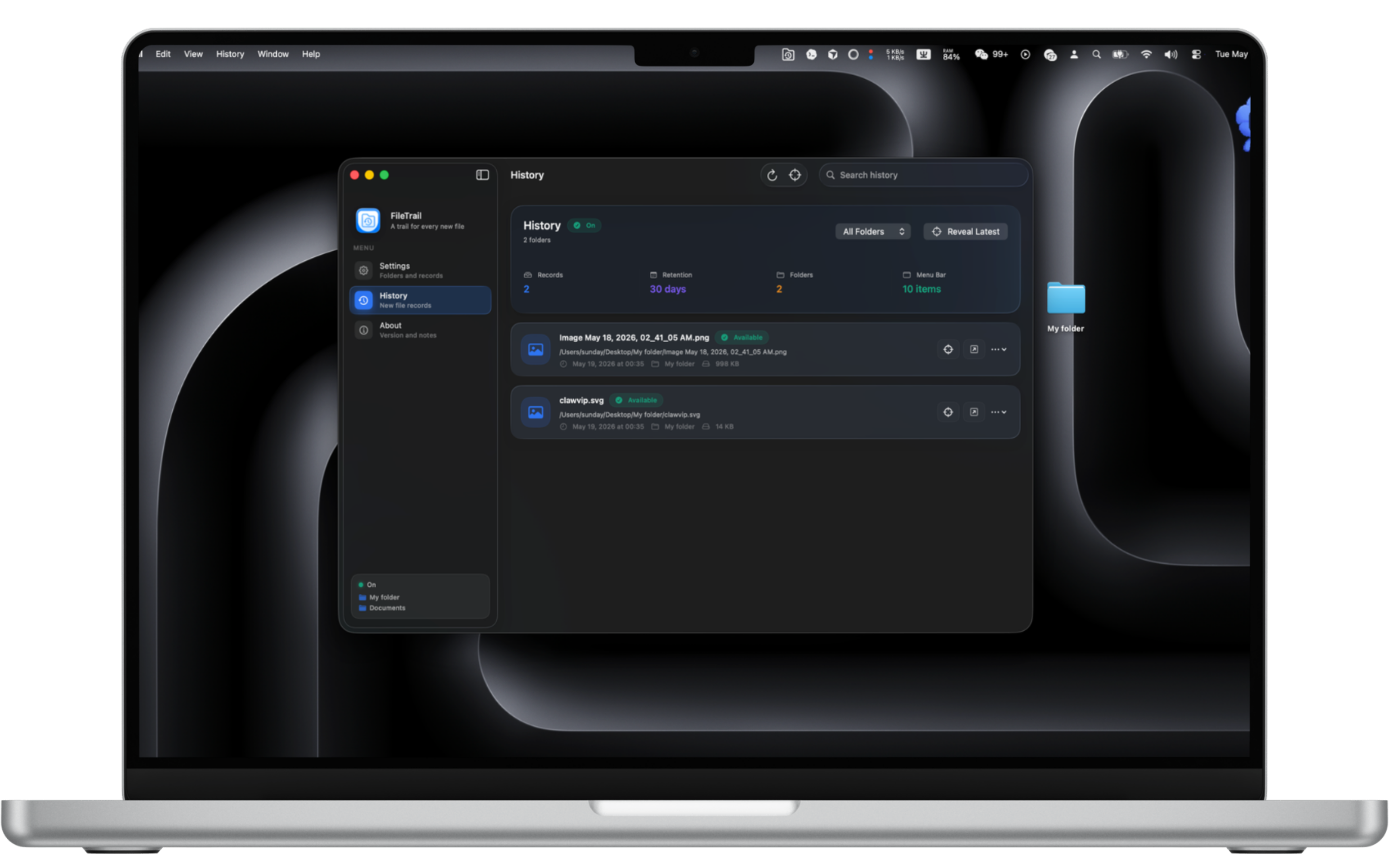
Record new files from the folders you choose, including Downloads, Desktop, and project folders
Back to apps


- Mac
FileTrail
FileTrail is a macOS file-tracking utility that records newly added files in the folders you choose, keeps a searchable local history, and gives you fast ways to reveal the latest file from the menu bar or Finder.
First published · 2026-05-18
Last updated · 2026-05-19
Features
Keep a searchable local history with detected time, file name, folder, size, and availability
Use the menu bar helper to keep recording after the main window is closed
Reveal the newest recorded file from Finder or the menu bar when you need to jump back quickly
Filter by common or custom file suffixes, and keep history only as long as you want
Overview
What is FileTrail?
FileTrail is a Mac new-file tracker for folders where files keep appearing—Downloads, Desktop, client drop folders, or project inboxes. It records newly added files, keeps a searchable local history, and helps you jump back to the latest file from the menu bar or Finder.
It is not a full-disk indexer. It watches the folders you choose and logs what shows up after setup.
Who it is for
- People who lose track of the latest download or export
- Freelancers and teams who drop files into shared inbox folders
- Mac users who want history of when a file appeared, not only Finder sort-by-date
- Anyone who wants recording to continue from the menu bar after closing the main window
How to track new files on Mac
- Open FileTrail and choose a folder to monitor (free: one folder; Pro: multiple).
- Optionally filter by suffix (pdf, png, zip, or custom) so noise stays out of history.
- Enable the menu bar helper so recording continues in the background.
- When you need the newest file, use the menu bar item or the Finder toolbar entry to reveal it.
- Browse history with name, folder, size, detection time, and availability.
If the Finder button is missing, open a Finder window → View → Customize Toolbar… and drag FileTrail into the toolbar. Enable the Finder extension in System Settings when macOS asks.
Local history, not cloud storage
History and settings live in an app group container on your Mac so the main app, menu bar helper, and Finder entry share the same data. FileTrail does not require an account to keep a local trail of new files.
Free vs Pro
The free version records one folder. FileTrail Pro is a one-time unlock for multiple recording folders, so you can watch Downloads, Desktop, and work directories together.
FAQ
What does FileTrail do?
FileTrail watches the folders you choose and records files that appear there after setup. It is built for everyday places like Downloads, Desktop, work folders, and project directories where new files tend to pile up.
Does FileTrail need to stay open?
No. The main app is for settings and history. When menu bar recording is enabled, a helper stays in the menu bar and continues recording new files in the background.
How does the Finder entry work?
FileTrail includes a Finder Sync entry so you can quickly reveal the latest recorded file from Finder. The Finder extension is system-managed, so it may need to be enabled in System Settings. If the shortcut button does not appear in the top-right toolbar, open a Finder window, choose View > Customize Toolbar…, then drag FileTrail into the toolbar.
Where is the history stored?
History is stored locally on your Mac. FileTrail keeps settings and file history in its app group container so the main app, menu bar helper, and Finder entry can read the same data.
Can I monitor more than one folder?
The free version records one folder. FileTrail Pro unlocks multiple recording folders with a one-time purchase, so you can track Downloads, Desktop, and work folders together.
Can I limit which file types are recorded?
Yes. FileTrail can record all files, or only selected suffixes. You can use the common built-in suffixes or add custom ones such as pdf, png, zip, or tar.gz.
MORE FROM IPOCKET
Related apps
-
 iPocket NewFileMac
iPocket NewFile is a macOS Finder companion that brings New File back to the right-click menu, keeps your favorite file types close, and lets you save reusable templates for daily work.
View app -
 iPocket ClearMac
iPocket Clear is a native macOS app uninstaller that scans leftovers before cleanup, reviews protected data, and removes apps and related files in one guided flow.
View app -
 iPocketXLIFFMac
iPocketXLIFF is a smart XLIFF localization editor for Apple developers, featuring AI-assisted translation and seamless Xcode integration.
View app